Alert Contacts
Overview
Alert contacts hold the people to notify; every extra field corresponds to one alert method, and monitoring sends alerts through the channels configured on the contacts.
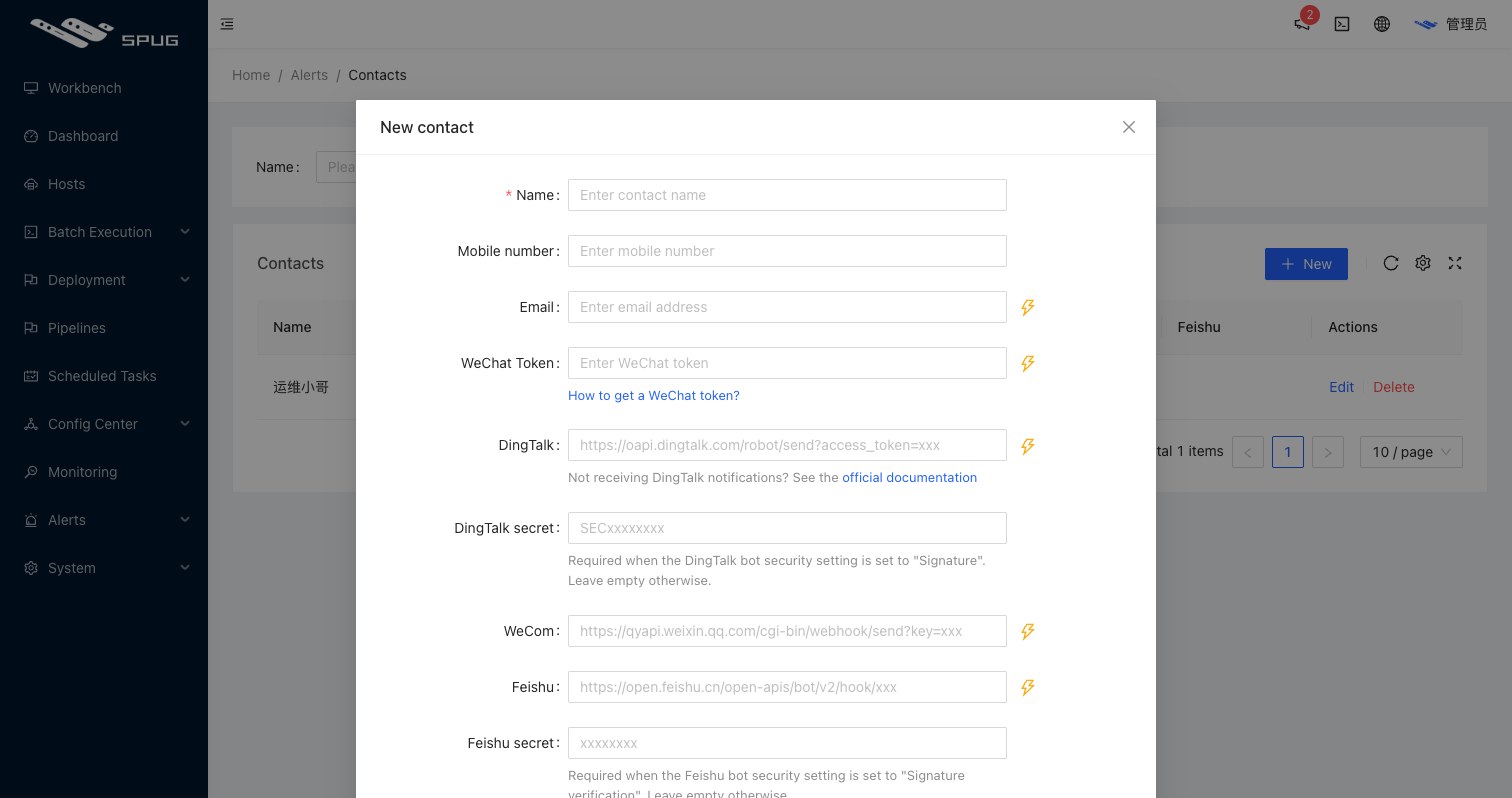
Fields
| Field | Alert method | Description |
|---|---|---|
| Name | - | contact name |
| Phone | SMS | reserved; use Push Assistant for SMS / phone call alerts |
sent through the built-in mail service (needs the service token) or the custom mail server configured under System Settings / Alert Service Settings | ||
| WeChat token | obtained from the Me menu of the Spug WeChat official account, see WeChat token | |
| DingTalk | DingTalk | webhook URL of the DingTalk group bot |
| DingTalk Secret | DingTalk | fill in when the bot uses Signing, otherwise leave empty |
| WeCom | WeCom | webhook URL of the WeCom group bot |
| Feishu | Feishu | webhook URL of the Feishu group bot |
| Feishu Secret | Feishu | fill in when the bot uses Signature verification, otherwise leave empty |
When creating or editing a contact, every channel field (email, WeChat token, DingTalk, WeCom, Feishu) has a lightning icon on its right that sends a test message through that channel to verify the settings.
Notes
- The built-in WeChat and email services need the service token, which is obtained the same way as a WeChat token; enter it under
System Settings / Basic Settings. - Any valid WeChat token can serve as the service token.
- Because of WeChat restrictions you must follow the official account to receive WeChat alerts.
- DingTalk does not receive notifications?
- Spug official account