Usage FAQ
The page keeps spinning after starting a background process with nohup
When a script in batch execution, a deploy configuration or a pipeline starts a background process with nohup or &, redirect its standard output to /dev/null. For example, the following Tomcat start command:
cd web/WEB-INF/
nohup ./startup.sh &
should become:
cd web/WEB-INF/
nohup ./startup.sh > /dev/null 2>&1 &
Can I use my own key pair?
Yes. Upload a key pair as the global key under System / Settings / SSH Key Settings, or upload a private key for a single host when creating or editing it; a host-specific key takes precedence over the global key.
git clone fails when creating a standard deploy request
Spug cannot type a user name and password interactively. Public repositories work with http/https/ssh; for private repositories click Private repository? next to the Git repository field of the deploy configuration and follow the instructions:
- Key authentication: add the public key of
Spugas a deploy key on your Git hosting platform and use thesshURL. - Account / password authentication: use the
http/httpsURL and enter the account and password (or access token).Spugbuilds a URL likehttps://yourname:password@gitee.com/openspug/spug.git; special characters such as@or/in the user name or password are escaped automatically, so there is no need to replace them by hand.
With the Docker install the repository must be reachable from inside the container, not only from the host. Pipeline build nodes access private repositories through credential management.
The host console, deploy page or pipeline console is empty
In most cases the WebSocket connection could not be established. This typically happens when you put a reverse proxy such as Nginx in front of Spug, because proxies do not forward WebSocket requests by default. Below is an Nginx example, assuming Spug runs in Docker with port 8000 mapped on the host:
server {
  listen 80;
  server_name xxx.xxx.xxx;
  client_max_body_size 100m;

  location / {
    proxy_pass http://127.0.0.1:8000;
    proxy_set_header X-Forwarded-For $proxy_add_x_forwarded_for;
  }

  location ^~ /api/ws/ {
    proxy_pass http://127.0.0.1:8000;
    proxy_http_version 1.1;
    proxy_set_header Upgrade $http_upgrade;
    proxy_set_header Connection "Upgrade";
    proxy_set_header X-Forwarded-For $proxy_add_x_forwarded_for;
  }

  error_page 404 /index.html;
}
Uploading in the file manager fails with 413 Request Entity Too Large
The upload size is limited by client_max_body_size in Nginx. The Nginx inside the official Docker image has no limit, so this error normally comes from an outer reverse proxy. Raise the limit there:
server {
  listen 80;
  server_name xxx.xxx.xxx;
  client_max_body_size 100m;

  ...
}
To change the Nginx configuration inside the container, edit /etc/nginx/nginx.conf: copy it in with docker cp after editing it outside, or edit it inside the container with vi, then restart the container.
DingTalk does not receive notifications
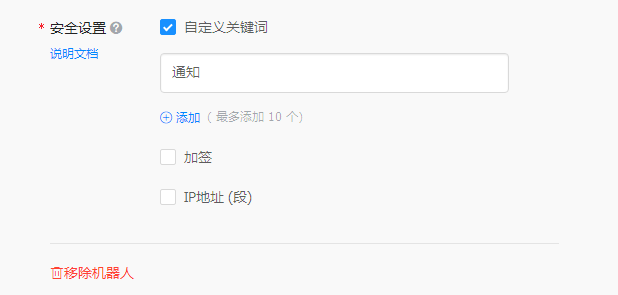
In the security settings of the DingTalk bot, either add the public IP of the server running Spug under IP address, or add 通知 (notification) as a custom keyword, as shown below.
If the bot uses signing, put the signing secret into the DingTalk Secret of the alert contact (or the Signing secret of the pipeline DingTalk node).
Feishu or WeCom does not receive notifications
- If the Feishu bot has signature verification enabled, put the secret into the
Feishu Secretof the alert contact; if it uses custom keywords, include通知or告警. - WeCom group bots have no security settings; make sure the webhook URL is complete and the server running
Spugcan reachqyapi.weixin.qq.com.
A deployment fails with xx: not found
Spug runs commands on the target hosts over a non-interactive SSH session, so the PATH may be incomplete. Add export PATH=$PATH:/xxx to Before deploy on host or After deploy on host in the deploy configuration.
With Docker, the 4.0.0 image no longer reads the /data/spug/env file used by 3.x. Put variables that must apply inside the whole container into the environment of the spug service in docker-compose.yml, then run docker compose up -d to recreate the container:
    environment:
      - JAVA_HOME=/usr/local/jdk
      - PATH=/usr/local/jdk/bin:/usr/local/sbin:/usr/local/bin:/usr/sbin:/usr/bin:/sbin:/bin
      # ... keep SPUG_DOCKER_VERSION, MYSQL_* and the other existing variables
PATHreplaces the image default as a whole, so keep the system directories shown above.- These variables only affect steps that run inside the Spug container (such as
Before / After checkoutof a standard deploy);Before / After deploy on hostruns on the target host with that host's own environment. - Software installed by hand into the image layer is lost when the container is recreated; keep tools such as a JDK or Node under the mounted directory
/data/spug(/data/spug/serviceon the host).
File distribution or pipeline data transfer reports sshfs / rsync errors
File distribution and the data transfer / data upload pipeline nodes require rsync and sshfs on the host (or container) running Spug, and rsync on the target hosts. The official Docker image ships them; install them yourself for manual deployments. In Docker the container needs privileged: true to mount with sshfs.
Ping checks report that ping is not installed
Ping checks run the ping command on the host (or container) running Spug. Install iputils-ping (Debian / Ubuntu) or iputils (CentOS). The official Docker image already includes it.
Login warns that the real client IP could not be determined
Spug binds login tokens to the client IP. When requests pass through a reverse proxy that does not send X-Forwarded-For, this warning appears. Configure the proxy as described in Best practices, or, for internal-only deployments, disable Client IP verification under System / Settings / Security Settings.