Batch Execution
Overview
Batch execution consists of Run Task and Templates. It is typically used for ad-hoc jobs such as installing or removing a package on many hosts or collecting information from them.
Run task
Pick one or more hosts from host management as targets, write the command directly (Shell or Python) or load a saved command template with Select Template.
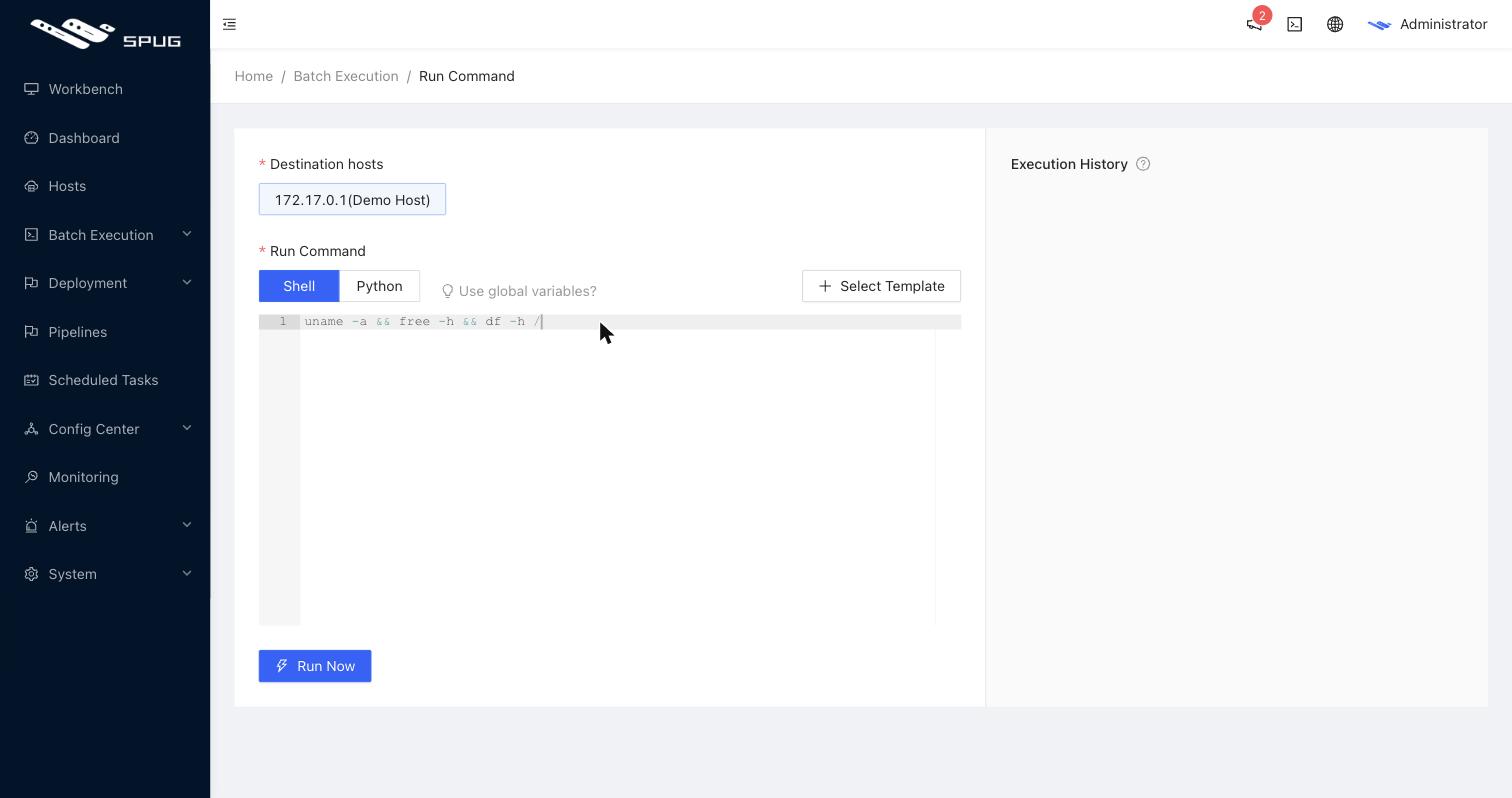
The execution page shows the output of every host in real time. You can:
- click Terminate to stop commands that are still running;
- click Open web terminal to log in to the host and investigate;
- select output with the mouse to copy it.
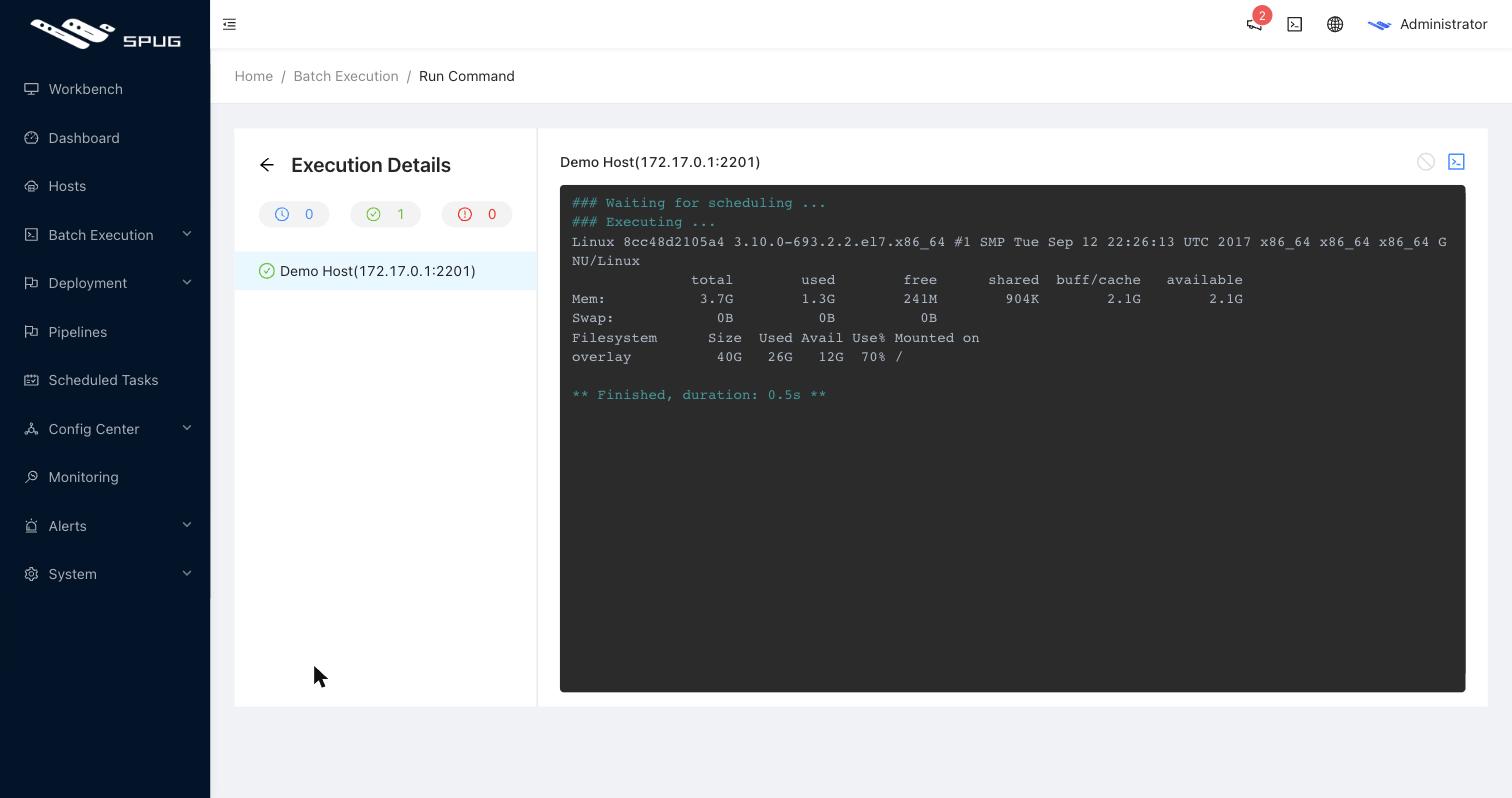
Retrying failed hosts
When some hosts fail (red icon in the left list, the counters at the top filter the list), there is no need to go back and submit the whole task again:
- select a failed host and click Retry in the top right to run it again on that host only;
- click Retry all failed hosts on the left to retry every host that currently failed.
A retry reuses the command and parameters of the current task and only re-dispatches the selected hosts. Hosts that already succeeded are untouched and the output is refreshed in place. This is handy when a few hosts failed because of a network glitch or a service that was not up yet.
Retrying relies on the connection between the execution page and the backend. Once the page reports Websocket connection failed or you have left the page, the buttons no longer work and you need to submit the task again.
Execution records are listed below the form. Identical runs are merged, records are cleaned up daily and only the most recent 10 per account are kept.
Templates
Templates store complex or frequently used command sets for later reuse.
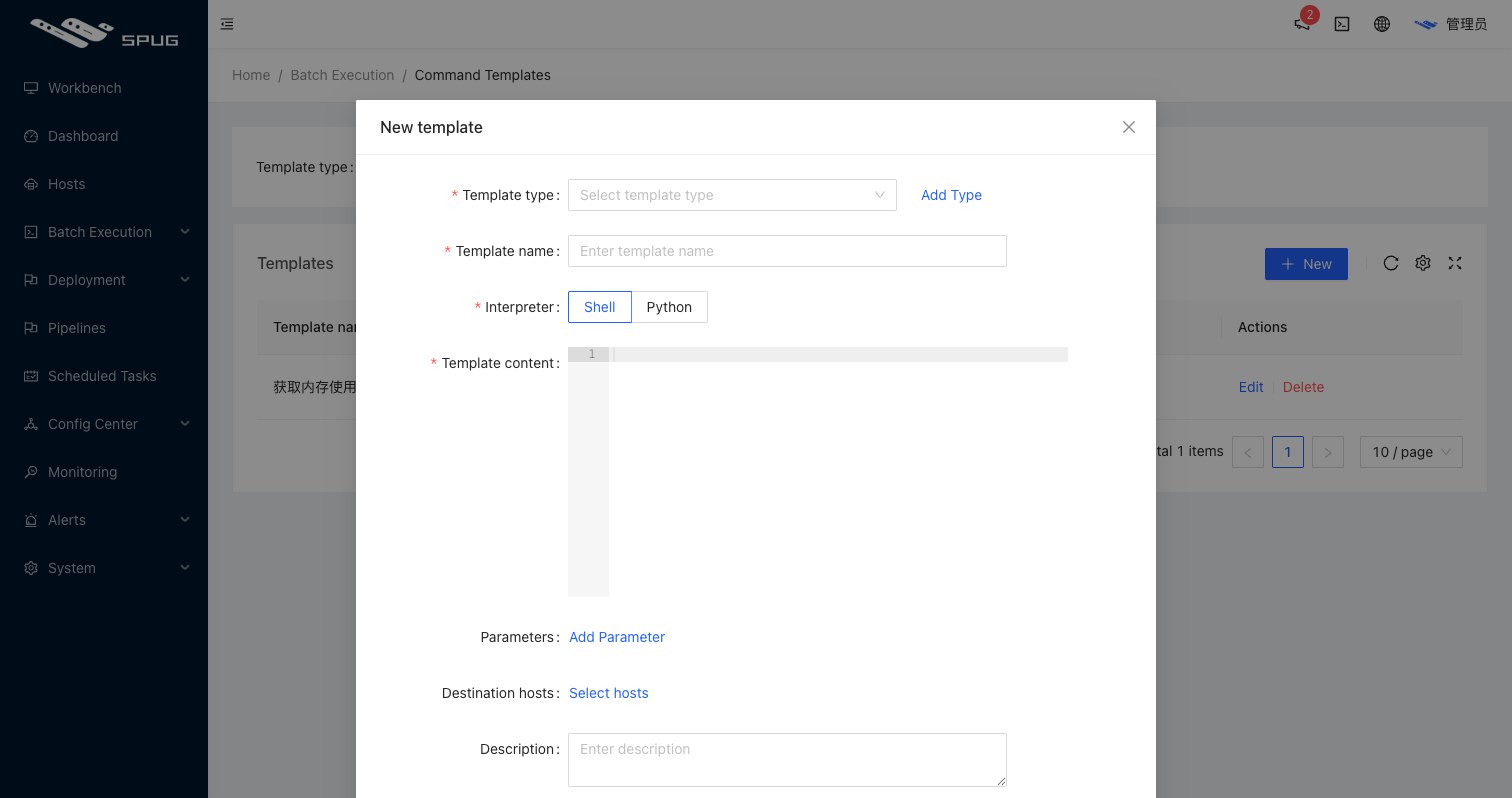
- Template type: a category; new categories can be typed directly into the drop-down.
- Template name / Interpreter / Content: the interpreter can be
ShellorPython. - Parameters: define parameters for the template; a form is shown when the template is run and the values are passed to the script as environment variables, see below.
- Target hosts: optional default hosts; selecting the template in Run Task pre-selects them.
Parameterized templates
Click Add parameter in the Parameters table:
| Setting | Description |
|---|---|
| Name | short label shown in the form when the template runs |
| Variable | variable name used in the script, prefixed with _SPUG_; variable name becomes the environment variable _SPUG_name |
| Type | text box, password box or drop-down |
| Options | for drop-downs, one option per line; use a colon to separate value and label, e.g. lisi:Li Si |
| Required | whether the parameter is mandatory |
| Default / Help | default value and the hint shown under the input |
Use the parameter in the script:
echo "restarting service: $_SPUG_service"
systemctl restart $_SPUG_service
Global variables
Reference them as $SPUG_HOST_HOSTNAME in Shell or os.getenv('SPUG_HOST_HOSTNAME') in Python.
| Variable | Example | Description |
|---|---|---|
| SPUG_HOST_ID | 1 | host ID |
| SPUG_HOST_NAME | webserver01 | host name |
| SPUG_HOST_HOSTNAME | 172.10.26.5 | host IP / domain |
| SPUG_SSH_PORT | 22 | SSH port |
| SPUG_SSH_USERNAME | root | SSH user |
| SPUG_INTERPRETER | python | interpreter |
Permissions
- Run task: allows running batch commands; the selectable hosts follow the host permissions of the role.
- View / New / Edit / Delete template: the corresponding template operations.