Web Terminal
Overview
The web terminal lets you log in to hosts from the browser without a local SSH client and includes a file manager for uploading and downloading files. It can be opened from two places:
- the Web Terminal button in the top-right corner of the host management page;
- the terminal icon in the header, which opens it in a new window.
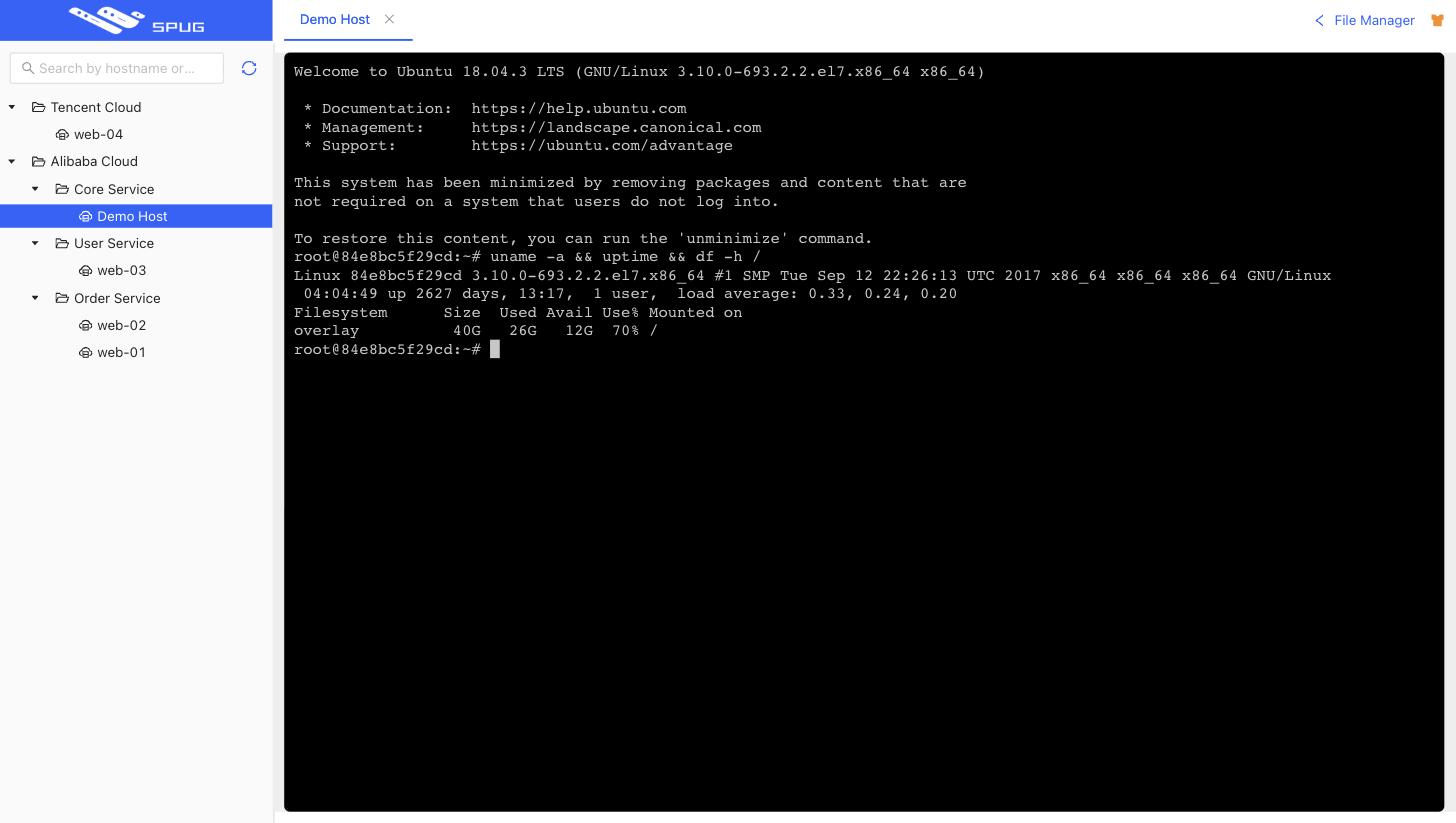
Working in the terminal
- The host list on the left mirrors the groups of host management and can be searched by name / IP. Click a host to open a terminal tab; the same host can have several connections at once.
- Double-click a tab to duplicate the window, right-click a tab to duplicate, reconnect, or close tabs to the right / other tabs / all tabs.
PageUp/PageDownscroll the output, a selection can be copied with the browser / system copy shortcut (Ctrl + Cis sent to the terminal), and the width of the terminal area can be dragged.- Terminal settings in the top-right corner let you choose font size, font family and color theme; the settings are saved with your account on the server and apply in any browser.
Tip
- Terminal sessions run over WebSocket. If a tab stays empty, check the reverse proxy configuration as described in Usage FAQ.
- Leaving the page asks for confirmation so that active sessions are not closed by accident.
File manager
Click File Manager inside a terminal tab to browse the file system of that host. Accounts without the web terminal permission land directly in the file manager mode (files only) when they open this page.
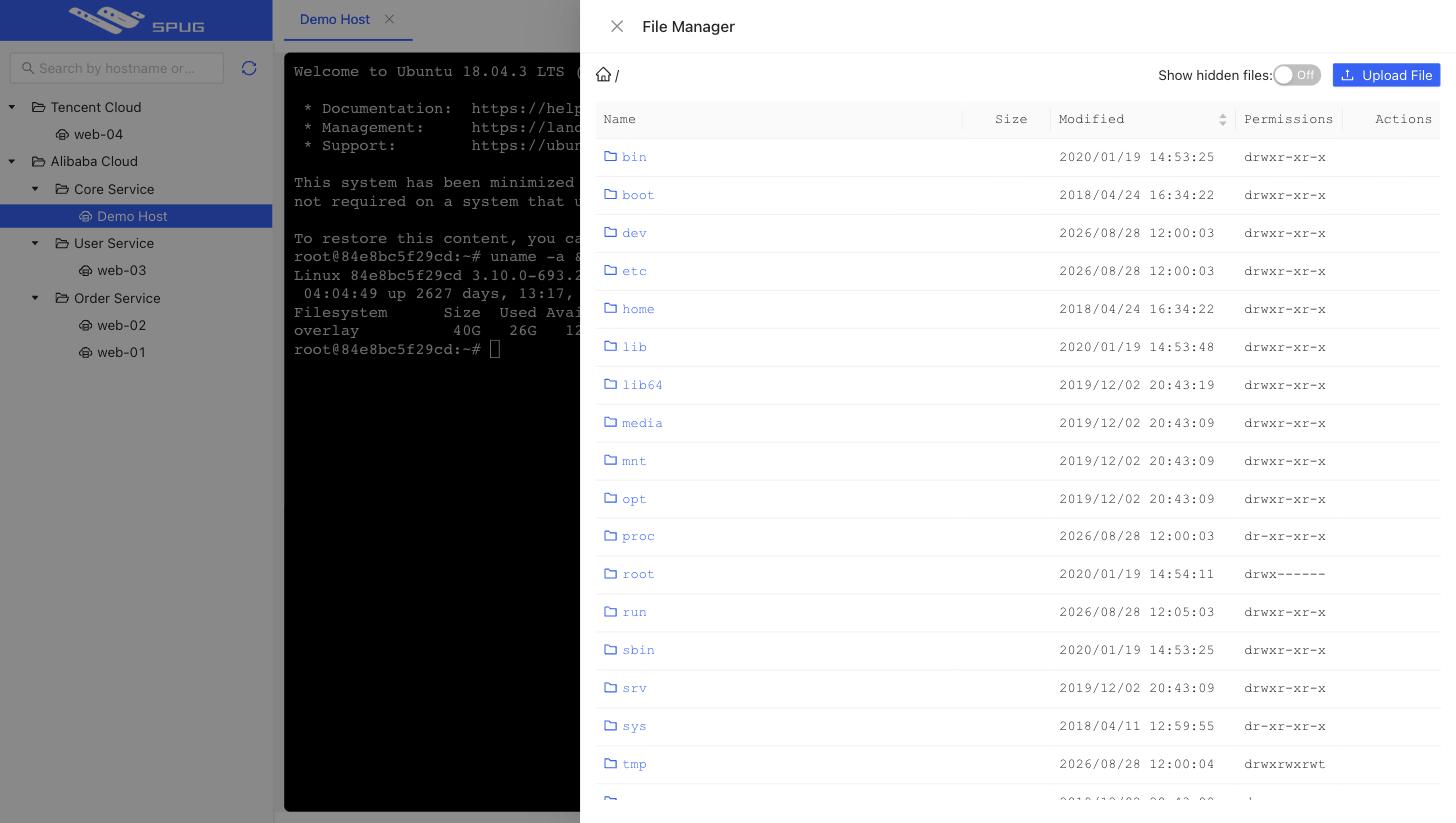
- Enter directories, go up, or type a path and press Enter to jump; recently visited paths are remembered for quick switching.
- Sort by modification time and toggle Show hidden files.
- Upload: pick local files to upload into the current directory; a progress bar is shown while uploading.
- Download: click the download button of a file to save it locally.
- Delete: remove a file from the host (requires the separate delete permission).
Permissions
The related feature permissions are under Hosts / Web Terminal in System / Roles / Feature permissions:
| Permission | Description |
|---|---|
| Web terminal | open terminal sessions |
| File management | browse directories and download files |
| Upload files | upload files to hosts |
| Delete files | delete files on hosts |
Which hosts are visible is controlled by the host permissions of the role.